

In-Person Selling
How To Set Up Tap To Pay On iPhone For Shopify POS
Shopify's help docs tell you to start inside the POS app. You cannot. Tap to Pay is activated in the Shopify admin ap...
Let's talk about something that trips up almost every Shopify store owner who's ready to scale: staff permissions.
You've hit the point where you can't do everything yourself anymore. Maybe you're hiring a VA, bringing on a developer, or adding a team member to handle orders. That's growth—and it's exactly where you should be.
But here's the thing most people get wrong: they either give everyone full access (terrifying) or they don't know how to set it up properly and waste hours figuring it out. Neither option works when you're building a business that should run like a machine.
This guide walks you through the complete staff permissions system in Shopify—adding users, assigning the right access levels, working with collaborators, and the critical ownership transfer process that every store owner needs to understand.
Here's the reality most Shopify store owners don't think about until it's too late: every person who has access to your store is a potential risk and a potential asset. The difference is how you set up their permissions.
I've seen store owners give their brand-new VA full admin access on day one. I've also seen developers hold stores hostage because the owner never took ownership. Both situations are completely avoidable with 15 minutes of setup.
Staff permissions in Shopify are actually one of the most well-designed features on the platform. They let you control exactly what each person can see, edit, and manage. The key is knowing what each permission does and having a strategy for who gets what.
Users are staff members you add to your Shopify store by creating user accounts in your admin. This lets you grant your team access to Shopify while controlling what they can see and do. You create and assign roles to each user with the specific permissions they need to complete tasks like adding products or managing orders.
The number of users you can add depends on your pricing plan:
| Shopify Plan | Staff Accounts | Collaborator Accounts |
|---|---|---|
| Basic | None | Unlimited |
| Shopify | 5 | Unlimited |
| Advanced | 15 | Unlimited |
| Plus | Unlimited | Unlimited |
As the store owner, you can manage users along with anyone you've assigned the Administrator role. And here's a detail that saves you money: collaborator accounts for developers and partners don't count toward your staff limit.
Adding a new staff member takes about 5 minutes. Here's exactly how to do it—with screenshots so you can follow along.
Go to Settings in your Shopify dashboard, then select "Users" or "Users and permissions" from the menu.
This is your command center for managing everyone who has access to your store. From here you can add, edit, and remove team members and see exactly who has access to what.
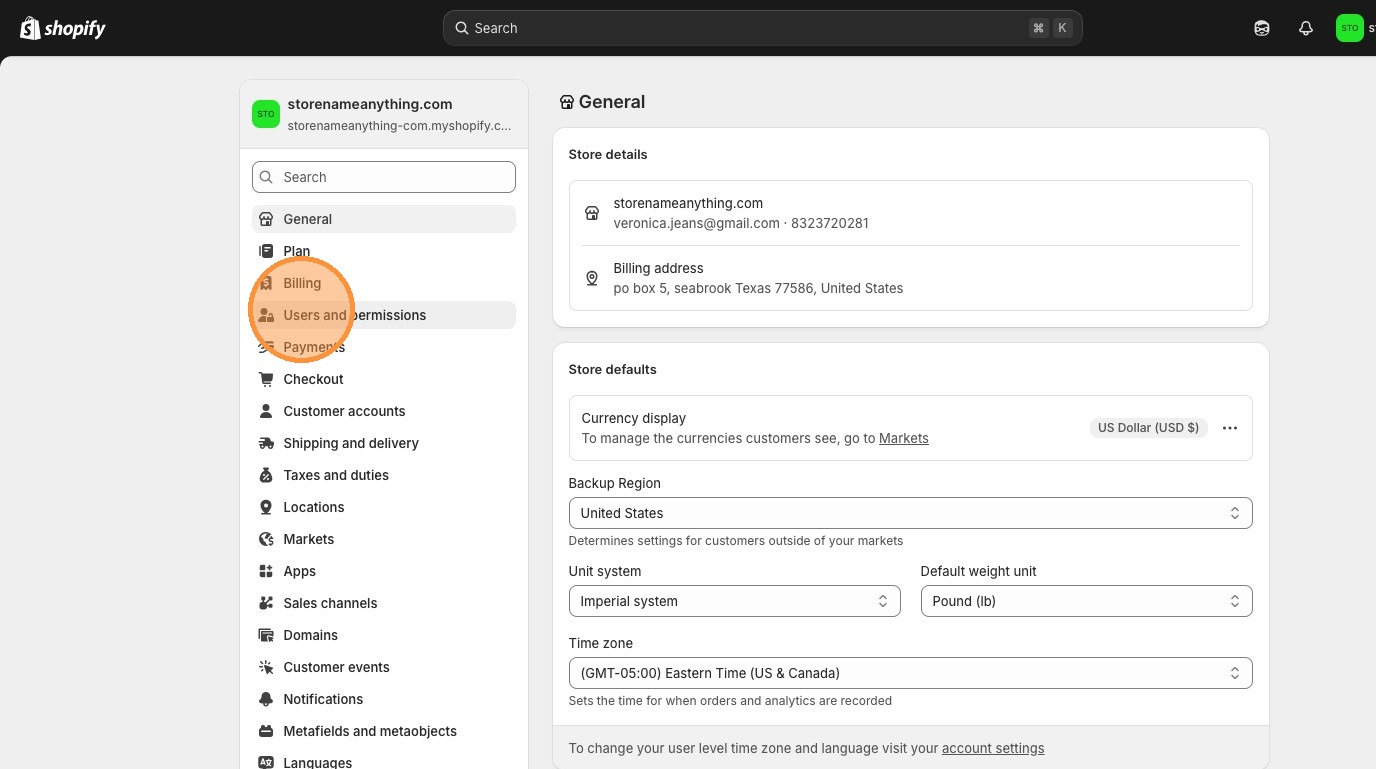
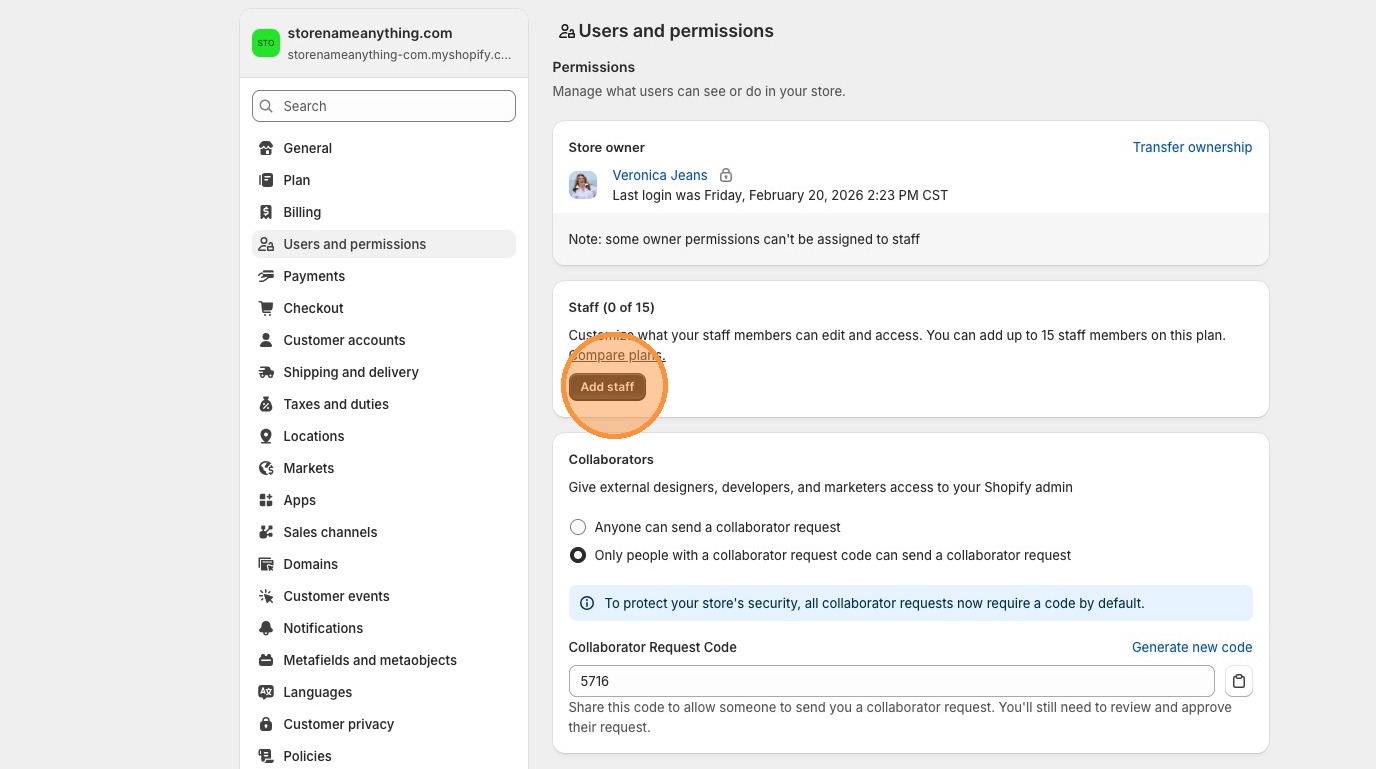
With a new store, you can add staff before choosing a plan. Once your store is active, the number of staff you can add depends on your Shopify plan.
Click the "Add staff" button to start the process.
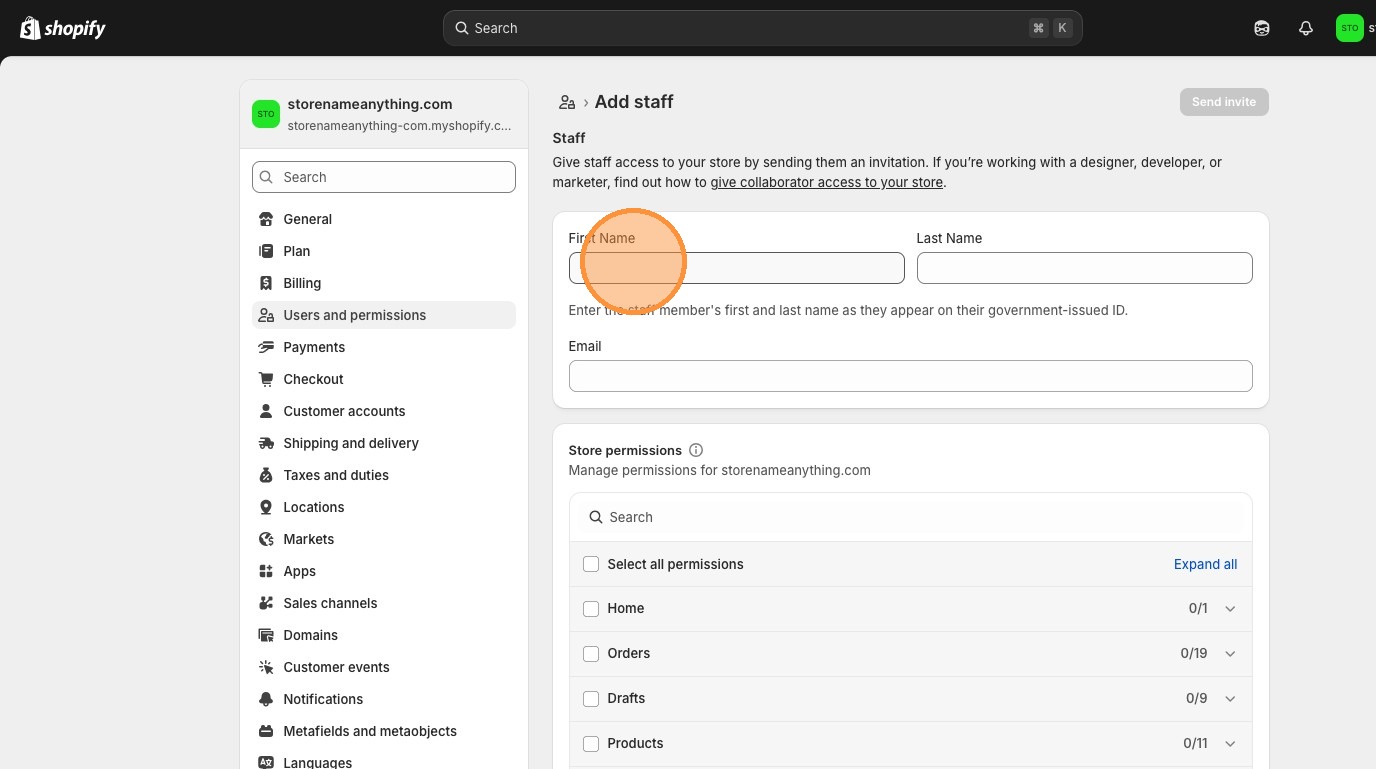
Fill in the new user's details: first name, last name, and email address. This email is what they'll use to log in, so make sure it's an email they actively use.
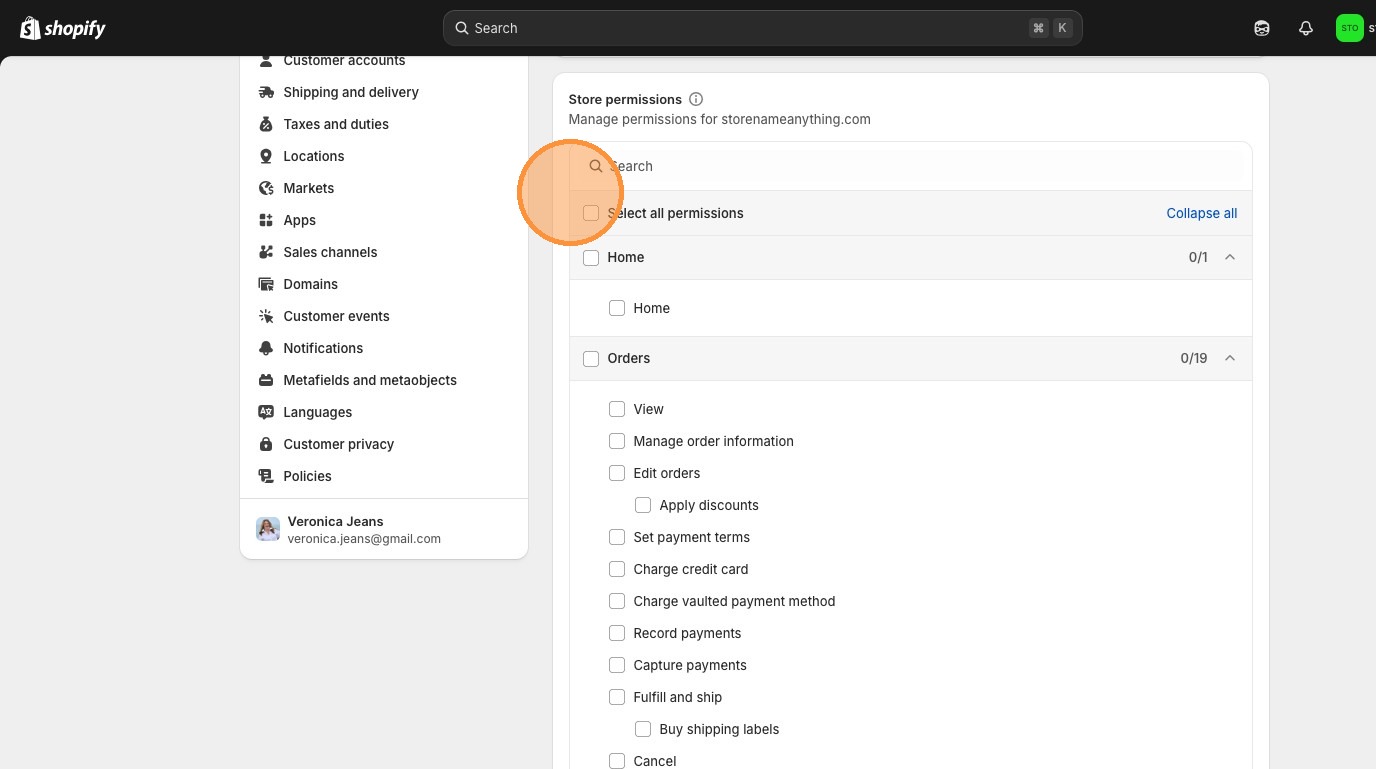
Click "Expand all" on the Permissions section to see every available permission. This is where you decide exactly what this person can see and do in your store.
You can select individual permissions or click "Select all permissions" for full access. My recommendation? Start with the minimum and add more as needed.
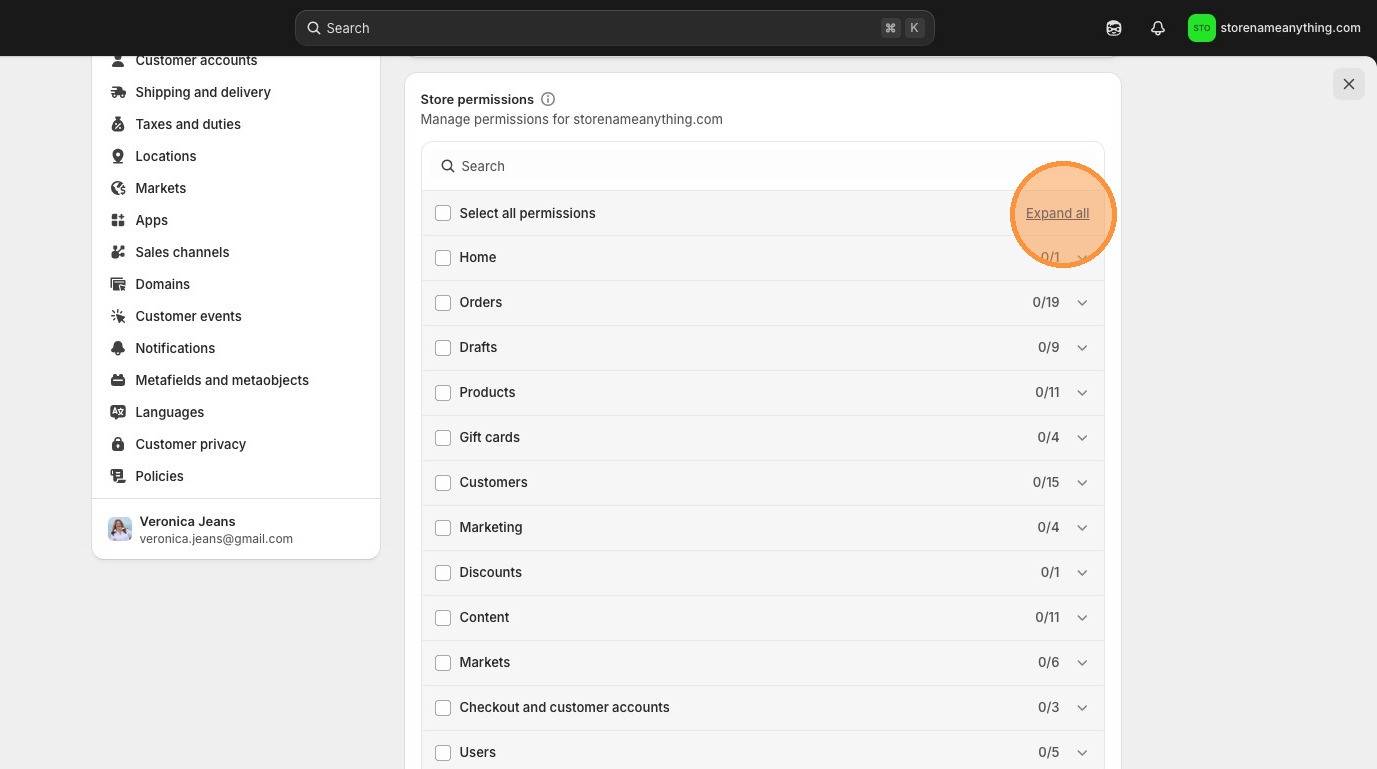
Click "Select all permissions" to grant full access, or check individual boxes to create a custom permission set. Each section controls a different area of your store—products, orders, customers, analytics, and more.
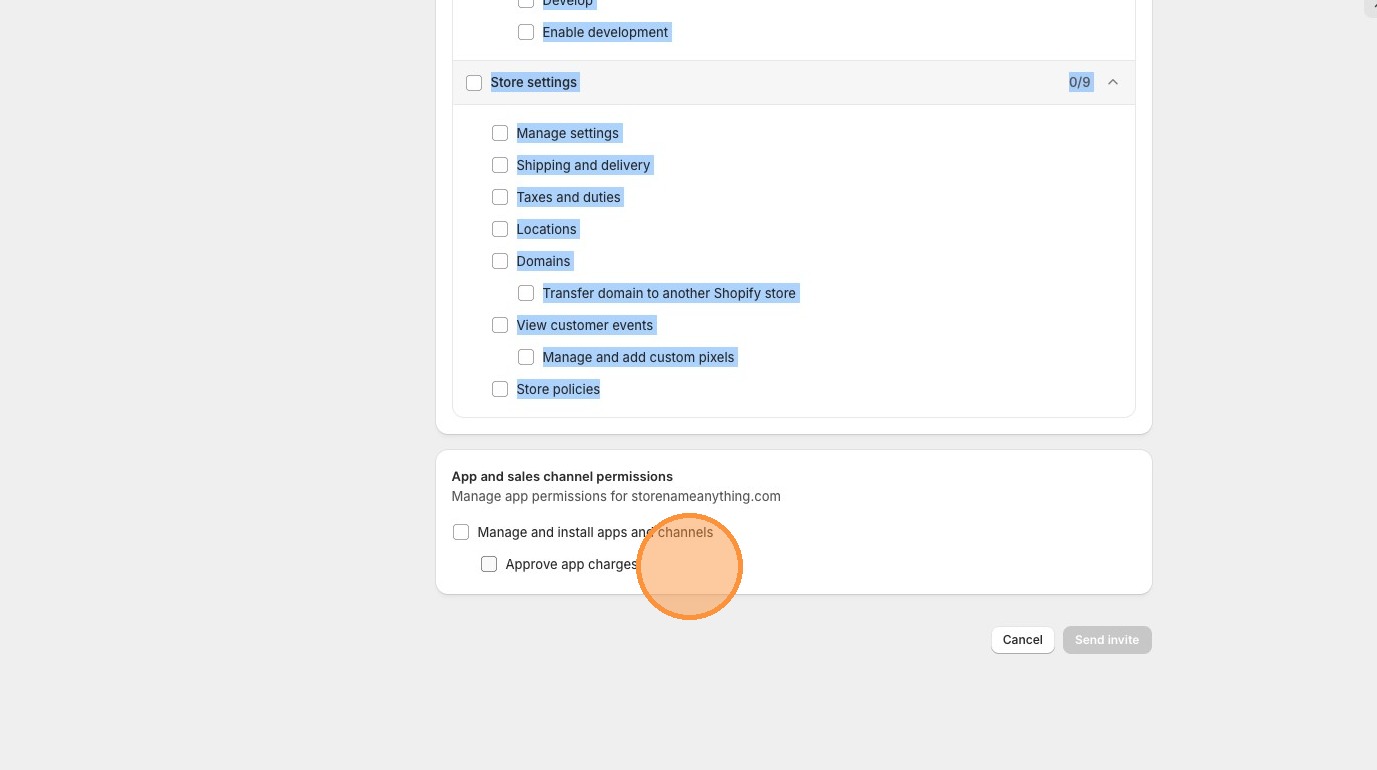
There are two separate permissions in the "App and sales channel permission" section that are often overlooked:
Think carefully before giving someone app installation access. Apps can access customer data, modify your theme, and incur monthly charges.
Not all permissions are created equal. Here's the strategic breakdown of what each permission area controls and who should have access:
Shopify has two built-in administrator system roles that grant elevated access. These are high-trust roles—only assign them to people you genuinely trust with your business.
The Organization administrator role grants permissions for almost all features and resources in your organization and all stores, including sensitive permissions and user management.
The Store user administrator role is more limited—it only grants user management permissions for specific stores. This person can manage users in their assigned stores but cannot:
This role is perfect for a team lead who needs to manage their direct reports' access without having broader business permissions.
This is where Shopify gets smart—and where you save money on your plan.
Collaborators are Shopify Partners who you've allowed to access your store. They work differently from regular staff accounts in some important ways:
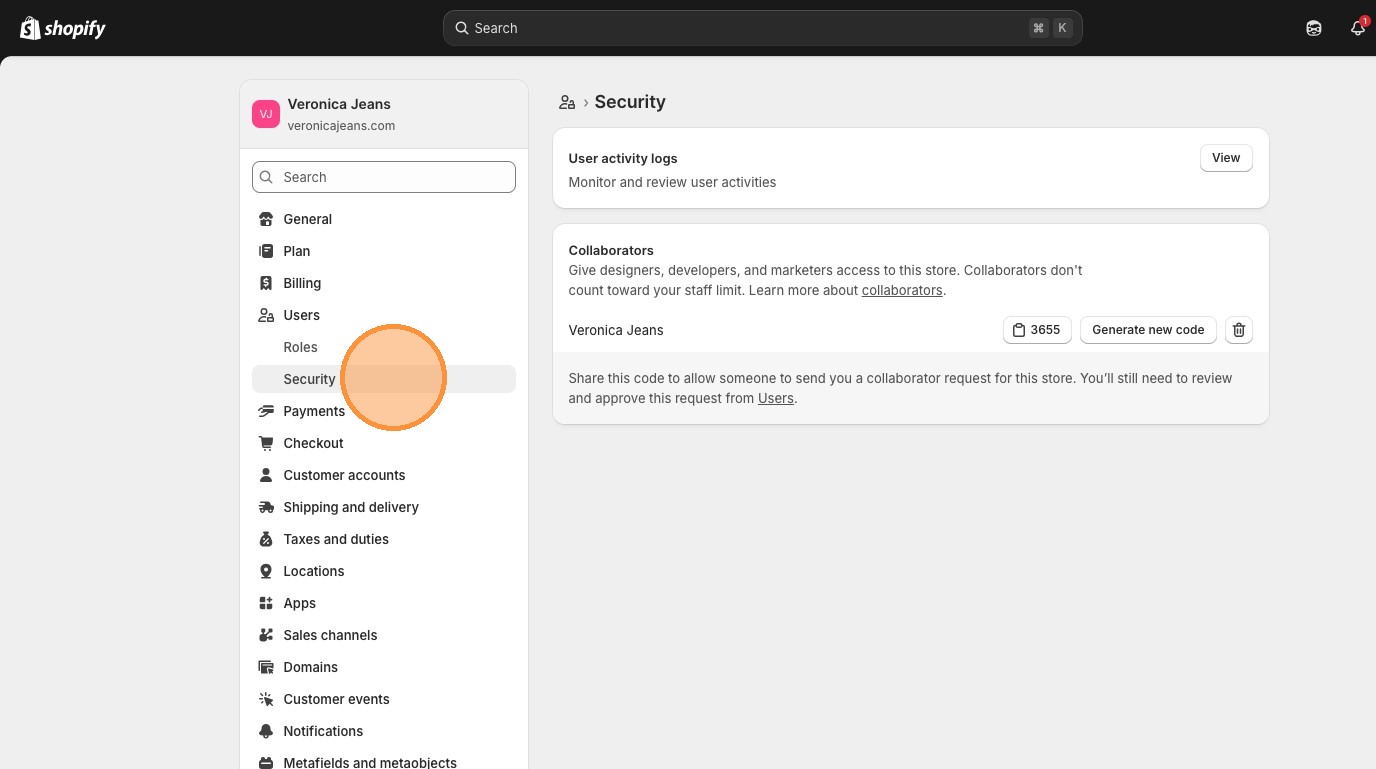
On a new store (before choosing a plan), the "Collaborators" section appears directly in the Users area. Once your store is active and you have ownership, collaborator management moves to the "Security" section.
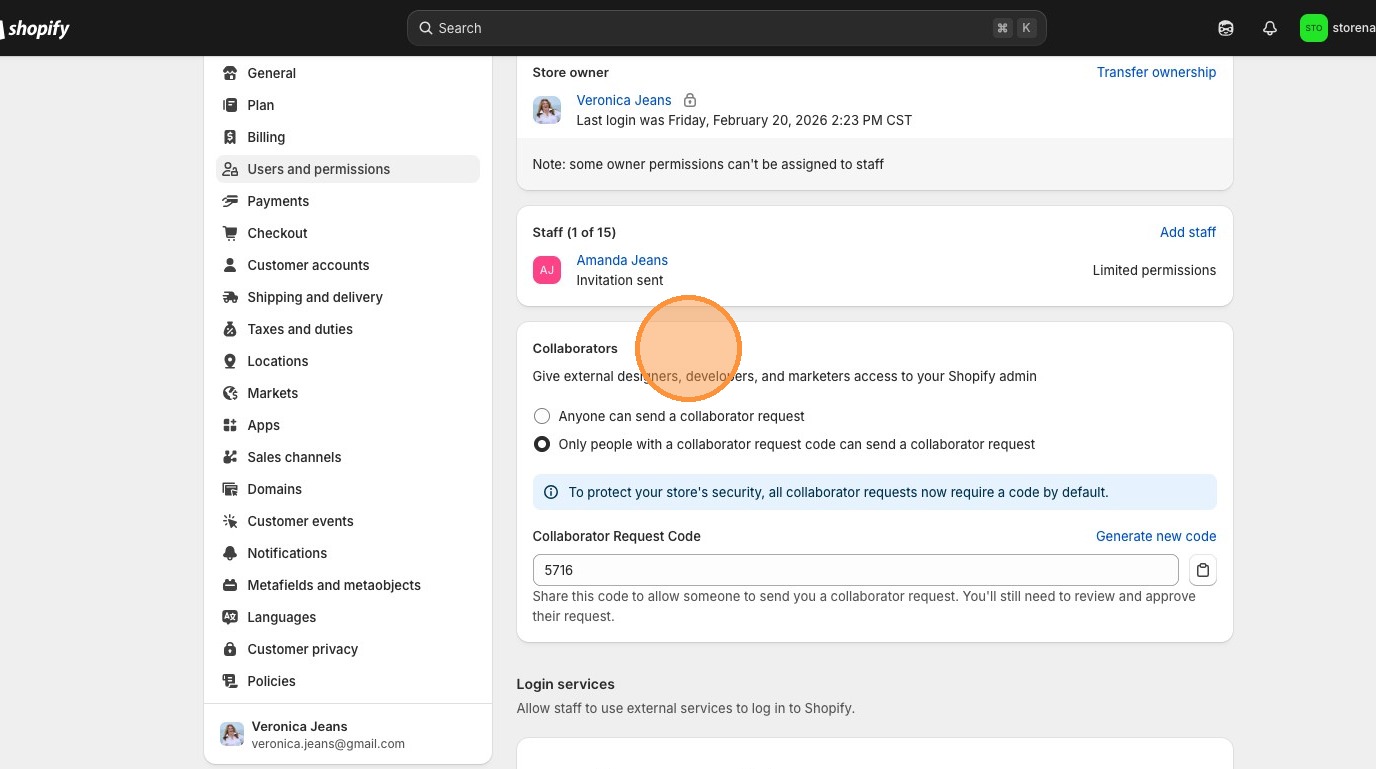
You have a unique code that you share with your collaborator (developer, designer, consultant). They'll use this code to send you a collaborator request. You can also generate a new code if needed.
Share this code to allow someone to send you a collaborator request for your store. You'll still need to review and approve the request—sharing the code alone doesn't grant access.
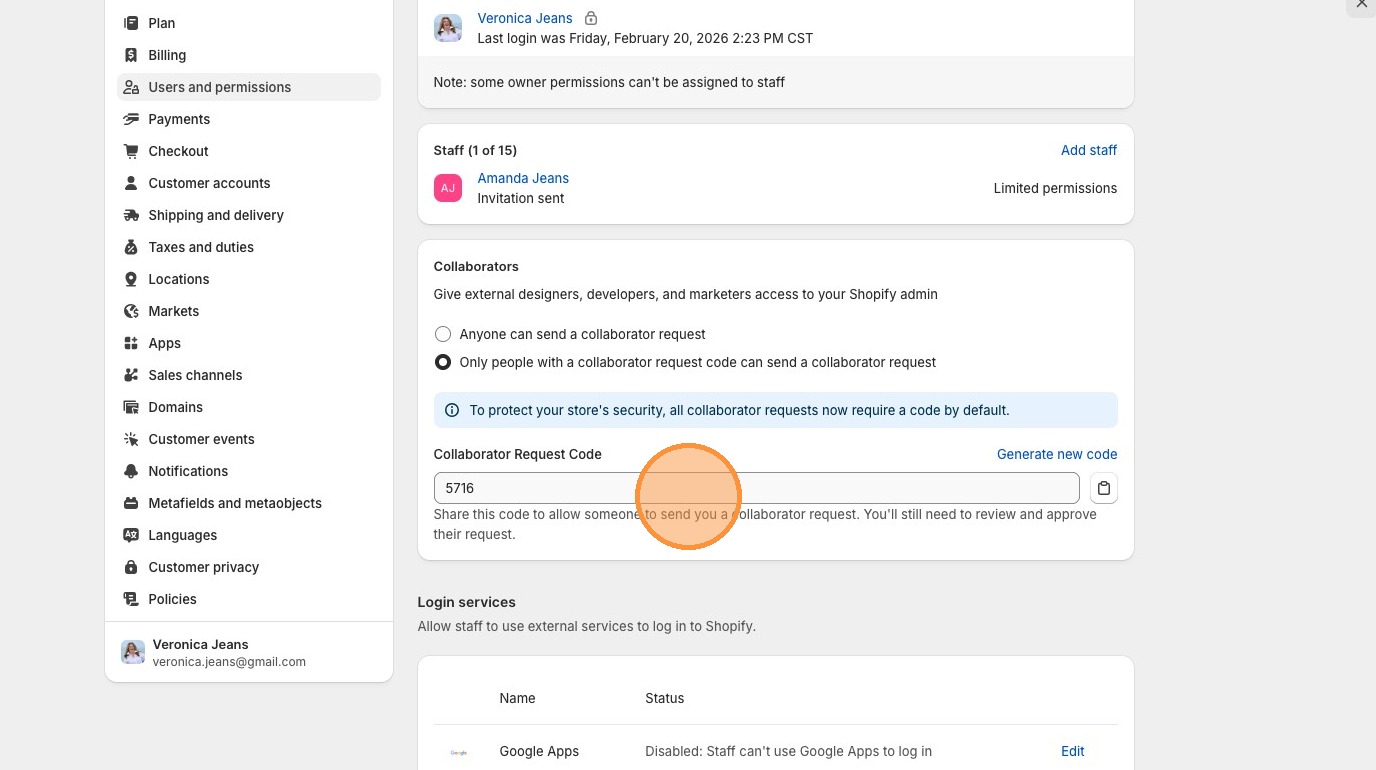
You and your staff can log in from a browser or the Shopify app. You can also connect login services (Apple, Facebook, Google) for faster access if your account is connected to one.
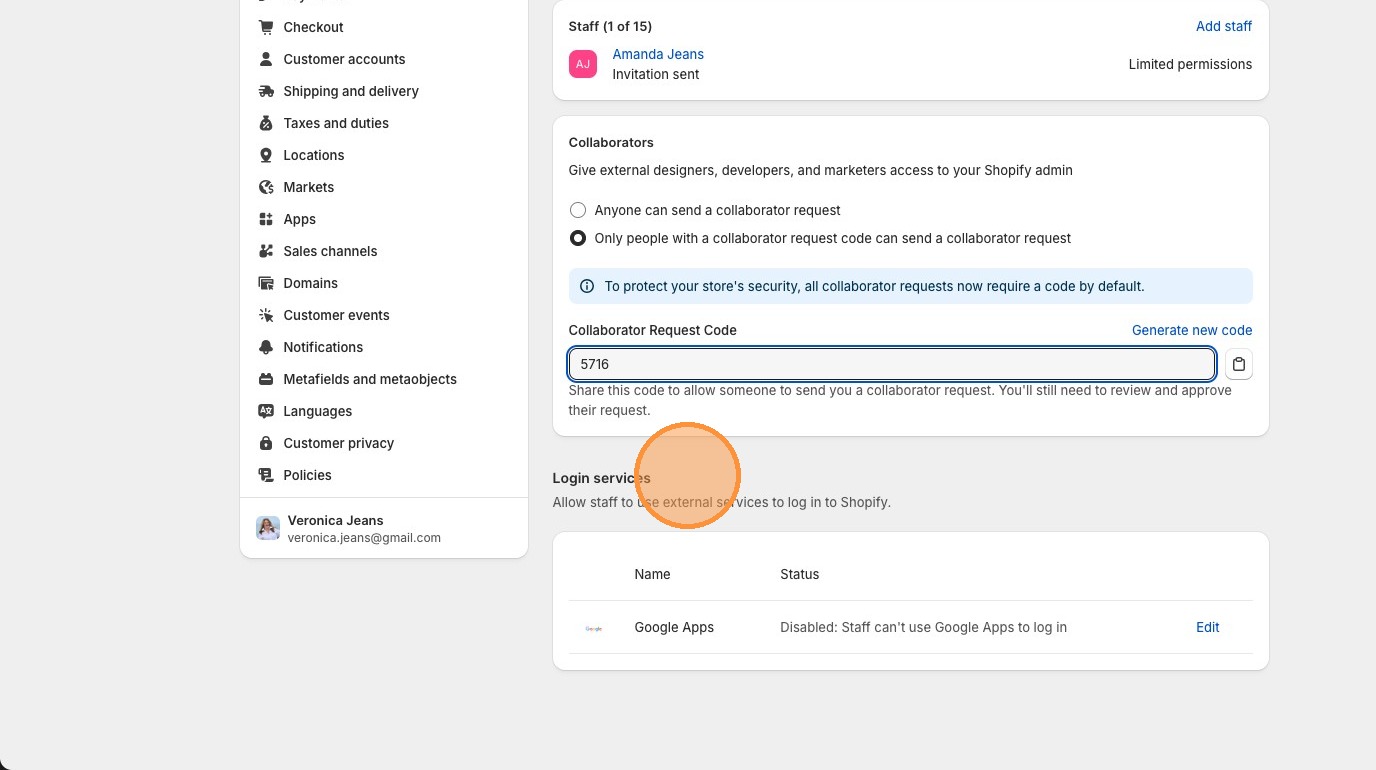
Once your store is active and you have team members, the Users dashboard becomes your go-to for managing access across your business.
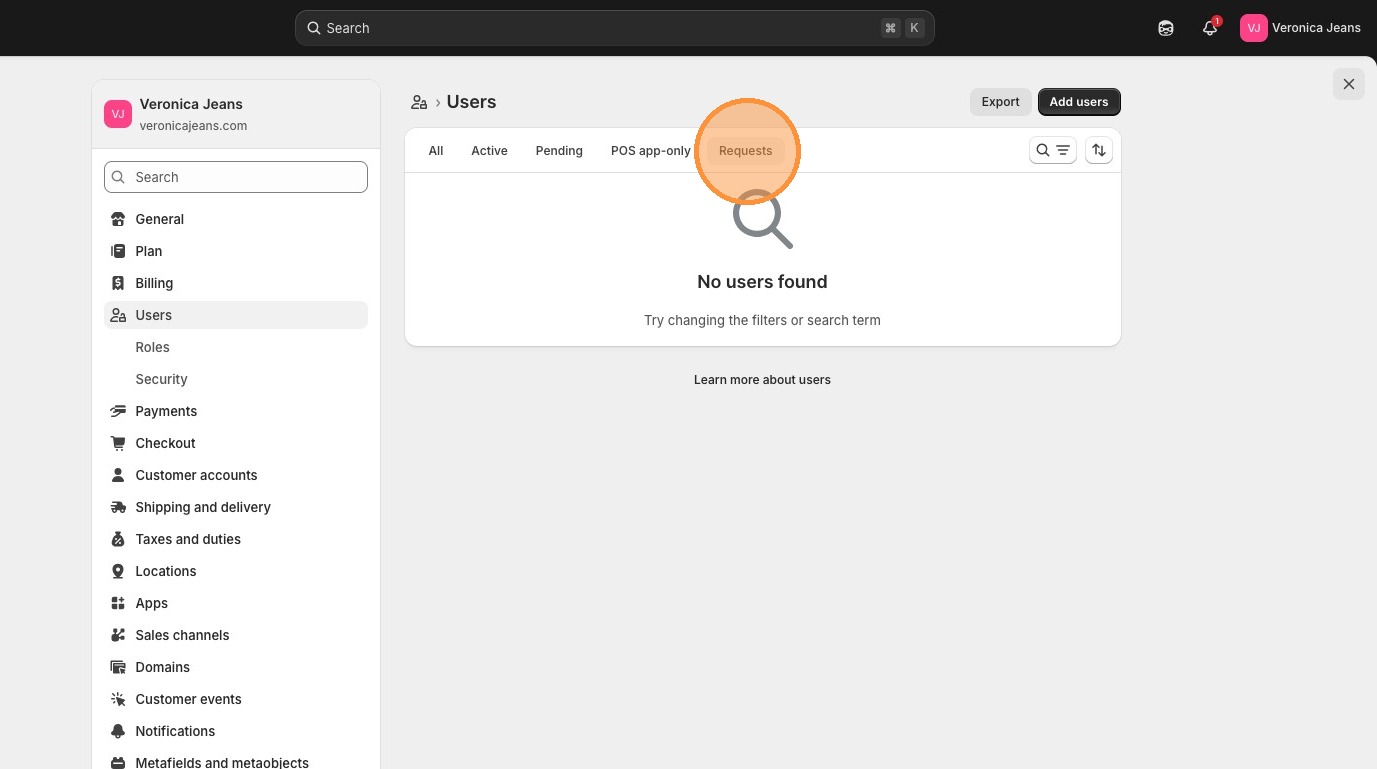
When you select "Users" on an active store, you'll see all current staff members listed. Click "Add users" at the top of the screen to bring new people in.
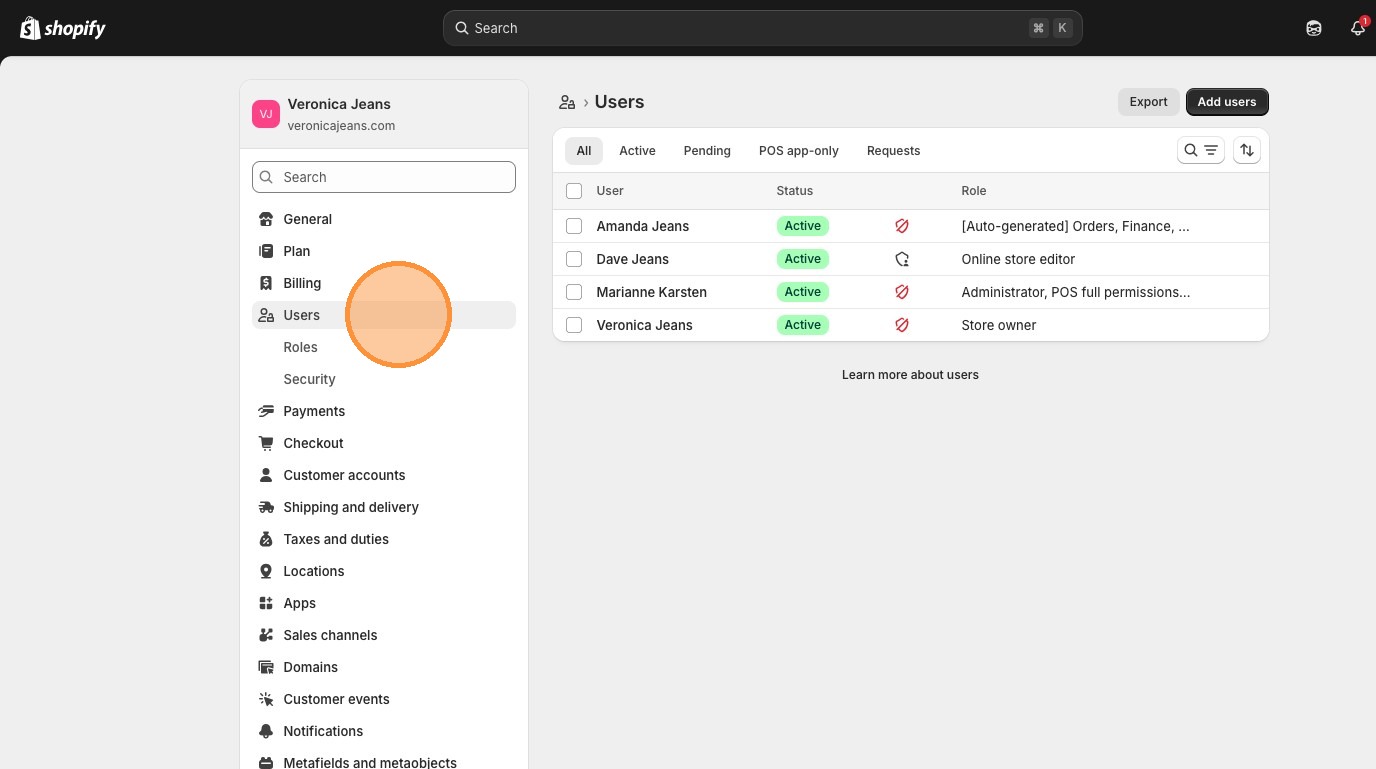
The Users section has multiple tabs to organize your team:
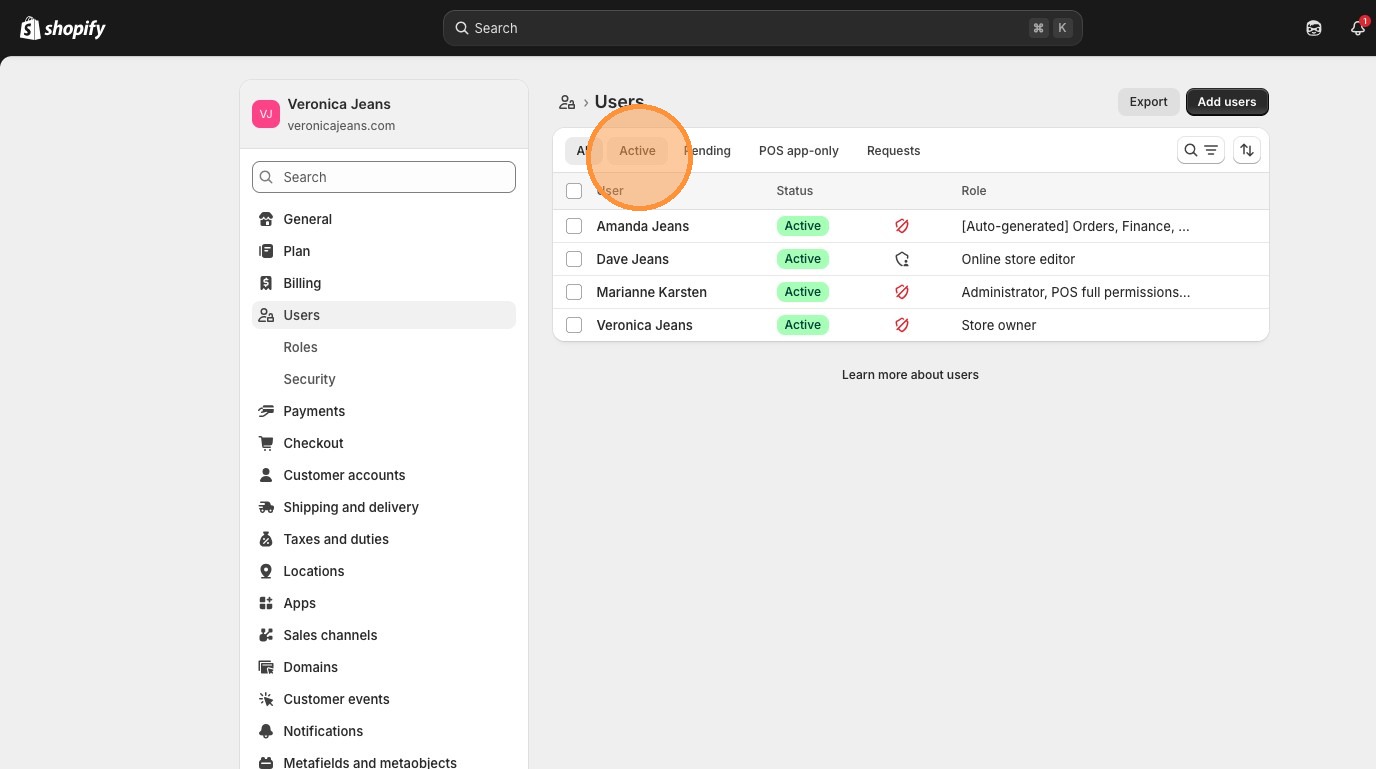
In the "Roles" section, you can see all the roles defined for your Shopify store, what category of permissions each role includes, and how many users are assigned to each role. This is your birds-eye view of who can do what.
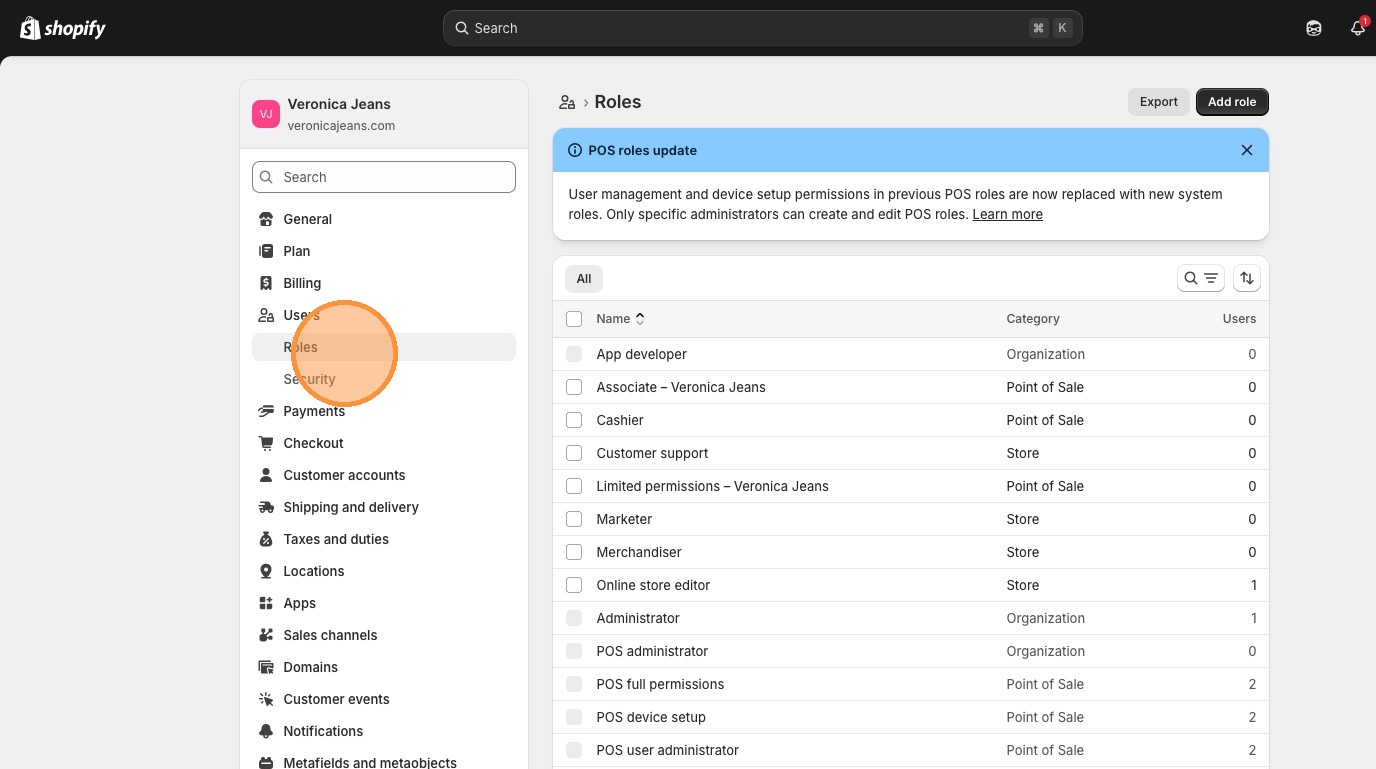
On an active store, collaborator access is managed under the "Security" section. This is where you give designers, developers, and marketers access to your store. Remember: collaborators don't count toward your staff limit.
Once you've shared your collaborator code and a partner sends a request, check the "Requests" tab to view their status. Click the name and approve the request to grant them access.
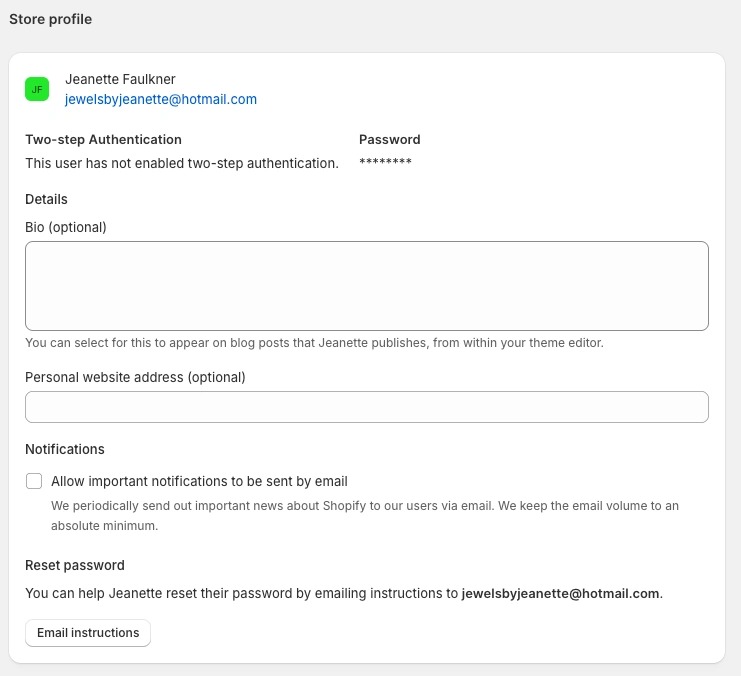
When adding a staff account, there are additional options to identify the user—including profile details and contact information that help you manage a growing team.
This section is one of the most important things I can teach you about Shopify. If someone else set up your store—a developer, a Shopify Expert, an agency—you need to take ownership. Period.
I've seen too many store owners who are running a business on a store they don't actually own. That means someone else controls your billing, your data, and your ability to operate. Not acceptable.
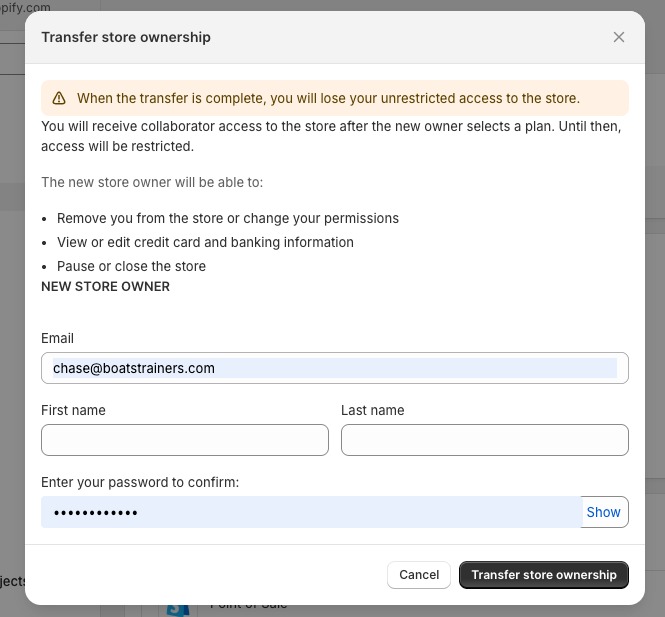
When ownership is transferred, the current owner will:
As the new store owner, you will be able to:
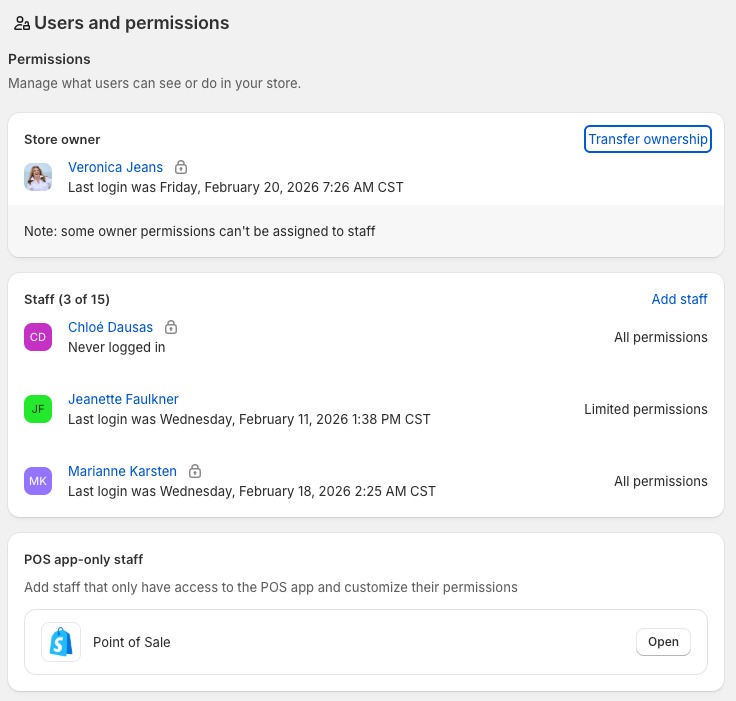
Your developer or Shopify Expert initiates the transfer from their end. They need to:
Settings > Users
You must already have a staff account on the store to accept ownership. You'll receive an email to accept the transfer.
Here's the permission framework I recommend to my consulting clients. It protects your business while giving your team what they need to be effective:
| Role | Recommended Permissions | What to Lock Down |
|---|---|---|
| Virtual Assistant | Products, Orders, Customers, Content | Settings, Apps, Financial reports, User management |
| Fulfillment Staff | Orders (view & fulfill), Inventory | Everything else—products, customers, settings, analytics |
| Content Manager | Blog posts, Pages, Products (view only), Marketing | Orders, Settings, Financial data, App management |
| Store Manager | Most permissions including Orders, Products, Customers, Analytics | Settings, App charges, User management (unless senior) |
| Developer | Use Collaborator access instead of staff account | Financial data, Customer PII (unless required) |
| Marketing Agency | Use Collaborator access with Marketing and Analytics permissions | Orders, Settings, Apps, Customer data export |
Staff permissions are just one piece of the puzzle. If you're making $5K-$50K/month and ready to scale with the right systems, automation, and strategy—let's talk.
Book a Free Strategy Call →It depends on your plan. Basic Shopify doesn't include staff accounts, Shopify plan allows up to 5, Advanced allows up to 15, and Plus allows unlimited. The good news? Collaborator accounts for developers and partners don't count toward your limit on any plan—so use those for external team members.
Staff accounts are for your internal team (employees, managers, VAs) and count toward your plan's user limit. Collaborator accounts are for external Shopify Partners (developers, designers, consultants) and are free—they don't count toward your limit. Collaborators access your store through their Partner Dashboard and can be removed at any time.
Absolutely—and you should. Shopify provides granular permission controls for products, orders, customers, analytics, marketing, settings, and more. You can also control app permissions separately. The smart move is to give the minimum permissions needed for each role and expand as needed.
First, your developer adds you as a staff member with an active account. Then they go to Settings > Users, click their name, select "Store owner" → "View stores," choose the store, and click "Change ownership." They enter your email and confirm. You'll get an email to accept. After accepting and choosing a plan, you have full control and they get collaborator access.
The previous owner loses unrestricted access and gets collaborator access after you select a plan. As the new owner, you gain full control—including the ability to change anyone's permissions, access financial and banking information, and pause or close the store. This is exactly why ownership matters: it puts you in control of your business.
No—this is one of the most common and costly mistakes I see. Your VA should only have permissions for their specific tasks. If they manage products and orders, give them only those permissions. Never give financial, settings, or app installation access unless absolutely necessary. You can always expand later, but you can't undo damage from too much access.
Administrator roles are high-trust system roles. The Organization administrator has nearly unlimited access including user management across all stores. The Store user administrator can manage users within specific stores only. Reserve these for senior, trusted team members. Most staff should have custom roles with specific permissions tailored to their responsibilities.
Yes, Shopify supports login services including Apple, Facebook, and Google. Staff can connect their accounts for faster login through the Login services section in Users settings. However, always ensure two-factor authentication is enabled regardless of login method—this is your security baseline, not optional.
This guide was created by Veronica Jeans, eCommerce Business Consultant & Shopify Expert, using Scribe for step-by-step documentation. Veronica coaches entrepreneurs to build 7-figure online businesses with systems that work while you sleep.